
Protecting a work email account
Published 2026-03-04
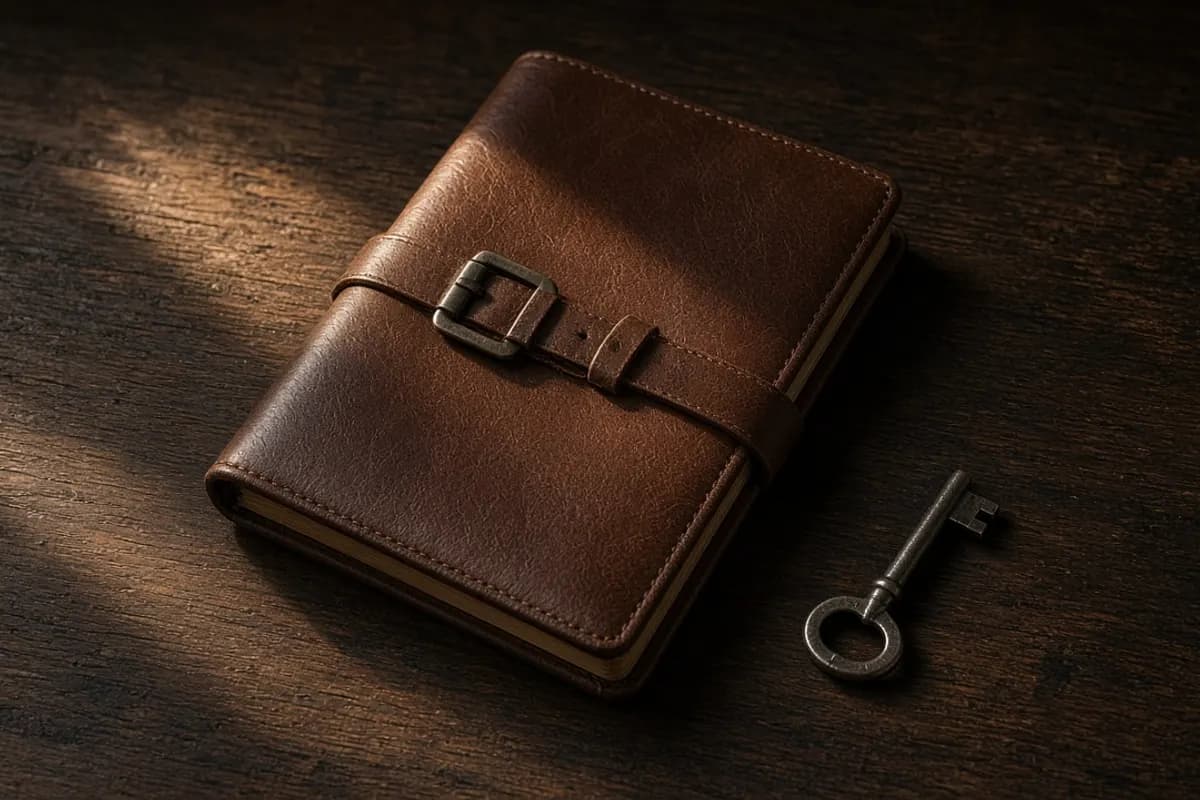
A password that belongs only here
A work mailbox is a door into invoices, contracts, and the rest of the team's conversations. The password on that door should exist nowhere else. If the same password also opens a shop, a forum, or an old personal account, a leak there becomes a key to the mailbox. Choose a long password you have not used before. A long phrase is harder to guess than a short word dressed up with a symbol. Do not reuse a password that already serves you somewhere else.
Do not build the password from the company name, the season, or your name with a digit at the end. Those shapes are the first a guessing script tries. Do not write the password on a note stuck to the screen, and do not mail it to yourself in the same mailbox. If you scribble a reminder while setting the account up, keep it off the desk and destroy it once the manager stores the real password. The password is a secret of the account, not an office fact.
Put it in a password manager
A password manager is a locked notebook for passwords. It stores the long password, fills it when you ask, and lets you keep a different password for each account. You remember one master password. The manager remembers the rest. Use a manager your company allows. If none is chosen yet, use a tool that locks when you step away and that opens on the devices you use for work. The tool exists so the mailbox password can stay long and unique.
The manager does not make the master password public property. Anyone who can open the manager can open the mailbox. Lock the computer when you leave the desk, and do not leave the manager unlocked on a shared machine. If a colleague needs a shared mailbox, do not paste the password into a chat. Share one entry with a named person through the manager, if the tool can do that. The mailbox password stays unique, and it lives in the manager, not in a message.
Add a second factor
Two-factor authentication asks for a second proof after the password. The password is something you know. The second proof is something you have, such as a code from an app or a prompt you approve on a device you carry. Turn it on for the work mailbox, so a stolen password is not enough on its own. Keep that second factor on a device you control. If a prompt appears when you are not signing in, refuse it and change the password. Do not hand the code to a colleague who says they only want a look.
A code by text message is also a second factor, and it is weaker than an app or a key, because the message can be redirected. If the mail host offers an app or a key, prefer that. If a text message is the only option today, turn it on rather than leaving a password on its own. Store backup codes somewhere other than the mailbox. A backup code that lives only in the mailbox helps you on no day when you are locked out.
Recovery you actually control
Recovery is the way back in when the password is forgotten or the second factor is lost. The recovery address should be a mailbox you control and can open without the work account. A personal mailbox you actually read, with its own long password and its own second factor, fits. An address you have abandoned does not, because the reset then sits unread. A shared team address is a poor path for your own login, because anyone who reads it can receive the reset. Note which address is set, and look again when your role changes.
If the host asks recovery questions, avoid true facts such as a school or a home city. Those facts are often easy to guess or to find in a public place. If you must answer, use words that are not the true facts, and store them in the password manager as if they were passwords. Do not print the recovery address in a signature or on a slide. Before you leave the company, update that address, so a reset does not arrive in a mailbox you can no longer open.
What does not belong in the signature
A signature is the small block on ordinary messages. It should help someone reach you for work: your name, your role, the company, and a work address. It should not carry a personal phone, a home address, a private mailbox, a birth date, or a photograph the work does not need. Those details are personal data, and they travel to every recipient and to anyone later forwarded the thread. A signature is a poor place for a secret, a password hint, or a private link. The less it holds, the less a stranger's archive collects about you.
Read the block under a message you sent last week. If it holds a motto, a long quote, or a legal paragraph copied from elsewhere, ask whether every reader needs it. Extra text hides the contact details, and a copied legal block may not match your company's own wording. Keep one signature for ordinary mail. Put special wording in the message itself, not in a permanent block. Take out anything you would not want a stranger to file against your name.
A review that fits a quiet hour
Twice a year, spend a quiet hour on the account. Check that the password is still unique and still in the manager. Check that the second factor is a device you still have. Check that the recovery address is one you have opened lately. Check that the signature still matches your role. This catches the drift when people change phones, change names, or inherit a mailbox. An inherited mailbox needs a new password on the day you take it, not the one the last person left behind.
This does not make a mailbox impossible to abuse. It closes ordinary gaps: a reused password, a single factor, a recovery address nobody reads, and a signature that shares more than the work needs. Write the choices where the person who looks after accounts can see them, without writing the password in that note. This is general information about everyday workplace practice. It is not a security certificate, and it is not legal advice for your company.